Easy Steps to Print Your ChatGPT Conversations
Printing a ChatGPT conversation is usually a matter of opening the chat, choosing the best format, and sending it to a printer or saving it as a PDF.
In this guide
Easy Steps to Print Your ChatGPT Conversations
Printing a ChatGPT conversation is usually a matter of opening the chat, choosing the best format, and sending it to a printer or saving it as a PDF. You can print a short exchange directly from your browser or phone, while longer chats are often easier to handle through a ChatGPT chat export. This guide explains how to print a ChatGPT conversation, how to save it as a PDF, and how to prepare an entire conversation so it is readable on paper.
What is the easiest way to print a ChatGPT conversation?
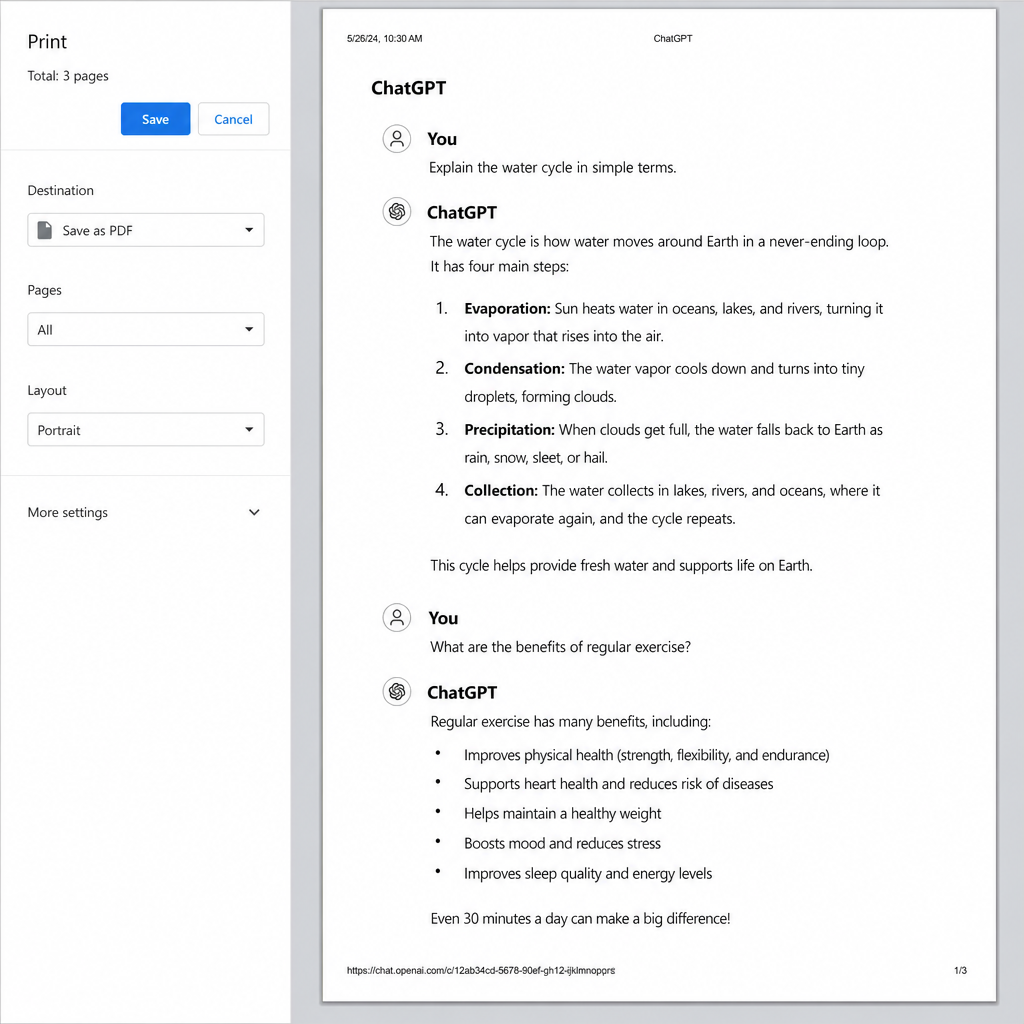
The easiest way is to open the conversation in ChatGPT, use your browser’s print option, and choose either a physical printer or “Save as PDF.” This works best for shorter chats where the full thread loads cleanly on the screen and you only need a simple copy for reference, study, documentation, or review.
For a quick printout, sign in to ChatGPT, open the conversation from your chat history, and scroll through the parts you want included. If your browser only prints what has loaded, scroll to the beginning and end of the chat before opening the print dialog. Then use your normal print command, preview the pages, and adjust layout settings such as margins, scale, headers, footers, and destination.
This direct method is fast, but it is not always perfect. Long chats may split awkwardly across pages, code blocks can wrap, and images or tables may not appear exactly as they do on screen. If the conversation is important, preview before printing and consider saving a PDF first so you can check the final version before using paper.
Step-by-step browser printing workflow
Use this process when you want the simplest answer to how to print out ChatGPT conversation content from a desktop or laptop.
- Open ChatGPT and select the conversation. Make sure you are signed in to the account that contains the chat you need.
- Load the full thread. Scroll through the conversation, especially if it is long, so the visible content has time to load.
- Clean up what you can. Collapse distractions, avoid printing unrelated browser tabs, and consider copying only the necessary section if the chat is very long.
- Open the print dialog. Use your browser’s print command from the menu or keyboard shortcut.
- Preview every page. Look for cut-off answers, missing tables, oversized text, or blank pages.
- Choose your destination. Select a connected printer for paper, or choose a PDF option if you want a digital file first.
- Save or print. If the conversation matters, save as PDF before printing so you have a reusable copy.
This workflow is also the easiest way to print a selected part of a chat. Highlight the section you need, copy it into a document editor, add a date or note, and print from there. That extra step can make the final version cleaner and easier to read.
How to print ChatGPT conversation to PDF
To print a ChatGPT conversation to PDF, use the same print workflow but choose a PDF destination instead of a physical printer. A PDF is often better than immediate printing because it preserves a shareable file, gives you a chance to review formatting, and lets you print later without reopening the chat.
If your goal is documentation, name the PDF clearly. Include the topic, project, or date in the filename so you can find it again. For example, a file name like “Marketing-plan-ChatGPT-notes.pdf” is more useful than a default browser title.
For best results, check these settings before saving:
- Destination: Choose “Save as PDF” or the equivalent PDF option on your device.
- Layout: Use portrait for normal text and landscape for wide tables or code.
- Scale: Reduce the scale if text or tables are being cut off.
- Pages: Print only the page range you need if the conversation is long.
- Headers and footers: Turn them on if you want page URLs and dates, or off for a cleaner document.
- Background graphics: Enable this only if the printed design matters.
PDF is also useful when you need to share the conversation with someone who should not access your ChatGPT account. Before sharing, review the file for private prompts, personal data, client names, internal strategy, or pasted source material.
Using ChatGPT export for longer conversations
A ChatGPT chat export is a better option when you need account-level records, very long conversations, or multiple chats. OpenAI’s help documentation says eligible signed-in users can request a copy of their ChatGPT data from Settings under Data controls, or through the Privacy Portal. The export can include chat history and other account data, and OpenAI notes that the downloaded files may contain sensitive information, so they should be stored securely. (help.openai.com)
The basic export path is: open your profile menu, go to Settings, select Data controls, choose Export, and confirm the export. OpenAI says the export may take up to 7 days to arrive, and the download link expires 24 hours after it is sent. (help.openai.com)
Once downloaded, the export usually arrives as a ZIP file. Extract it, locate the conversation data, and open or convert the relevant content into a readable format before printing. This is not always as visually polished as printing from the browser, but it can be more complete when you need to locate older or longer material.
Browser print versus export
|
Method |
Best for |
Main advantage |
Watch out for |
|---|---|---|---|
|
Browser print |
Short or medium chats |
Fast and familiar |
Long chats may format poorly |
|
Save as PDF |
Clean digital copy |
Easy to review and share |
Still depends on page formatting |
|
ChatGPT export |
Many chats or records |
More complete account data |
Requires download, extraction, and review |
|
Copy into a document |
Polished handout |
Full control over formatting |
Takes more manual cleanup |
How to print ChatGPT conversation from iPhone?
To print from iPhone, open the ChatGPT app, find the conversation, and use your device’s sharing or printing options where available. OpenAI says iOS users can access past chats from the app’s menu, where previous conversations appear starting with the most recent, and chat history syncs across signed-in devices. (help.openai.com)
If your iPhone print options do not capture the chat the way you want, use a workaround. Copy the conversation or the important section into Notes, Pages, Google Docs, or another writing app, then print or export that document as a PDF. This gives you more control over spacing, headings, and page breaks.
For longer iPhone chats, consider exporting your data instead of relying on mobile printing. OpenAI’s iOS FAQ says the app includes an Export Data option under Settings and Data Controls, with the downloadable ZIP sent to the registered email address and the link expiring after 24 hours. (help.openai.com)
Preparing an entire conversation for printing
Learning how to print an entire ChatGPT conversation is mostly about preparation. Entire threads can include repeated prompts, drafts, corrections, code, tables, and personal details. Printing everything without review can waste pages and expose information you did not intend to keep.
Before printing a long conversation, use this checklist:
- Confirm you need the whole chat. If not, copy only the final answer or the key sections.
- Remove sensitive material. Check for names, passwords, client details, medical information, financial notes, or private pasted text.
- Add context. A short heading, date, or project label can make the printout useful later.
- Check formatting. Tables, code, and bullet lists may need landscape orientation or manual cleanup.
- Save a PDF first. Review the file before sending it to a printer.
- Store exports carefully. Exported files can contain more than the one conversation you planned to print.
If the conversation is for work, school, legal review, or recordkeeping, avoid altering the content in a way that changes meaning. Instead, save an original PDF and create a separate cleaned-up version for easier reading.
Practical tips for cleaner printouts
A clean printout is easier to use than a raw transcript. For study notes, keep the best answer, supporting examples, and any follow-up explanation. For business use, add section headings so the reader can quickly see what the chat was about. For technical chats, test whether code blocks stay readable before printing multiple copies.
You can also paste the conversation into a document and lightly format it. Use bold labels such as “Prompt” and “Response,” add page numbers, and remove unnecessary sidebar text. This is especially helpful when the conversation will become meeting notes, training material, research support, or a project appendix.
Final takeaway
The fastest method for how to print ChatGPT conversation content is browser printing, while the safest workflow is usually to save the chat as a PDF first. For long records, use a ChatGPT chat export, then extract and prepare the relevant conversation before printing. Whether you are on desktop or iPhone, always preview the result, protect sensitive information, and choose the format that makes the conversation easiest to read later.