Exploring ChatGPT's New Image Editing Features
ChatGPT’s newer image tools make visual editing feel less like learning complex software and more like explaining what you want.
In this guide
Exploring ChatGPT's New Image Editing Features
ChatGPT’s newer image tools make visual editing feel less like learning complex software and more like explaining what you want. The chatgpt image editor can create images, revise existing visuals, adjust selected areas, work from templates, and turn rough sketches into more polished concepts. For creators, marketers, educators, and small teams, that means faster first drafts and more accessible ai graphic design workflows without starting from a blank canvas.
What can ChatGPT’s image editor do now?
ChatGPT Images lets users create new images and edit existing ones directly in ChatGPT. According to OpenAI, ChatGPT Images 2.5 adds sharper details, more precise editing, faster generation, templates, sketch-to-image creation on mobile, and prompt sharing, making it a more flexible ai image editor for everyday creative work. (help.openai.com)
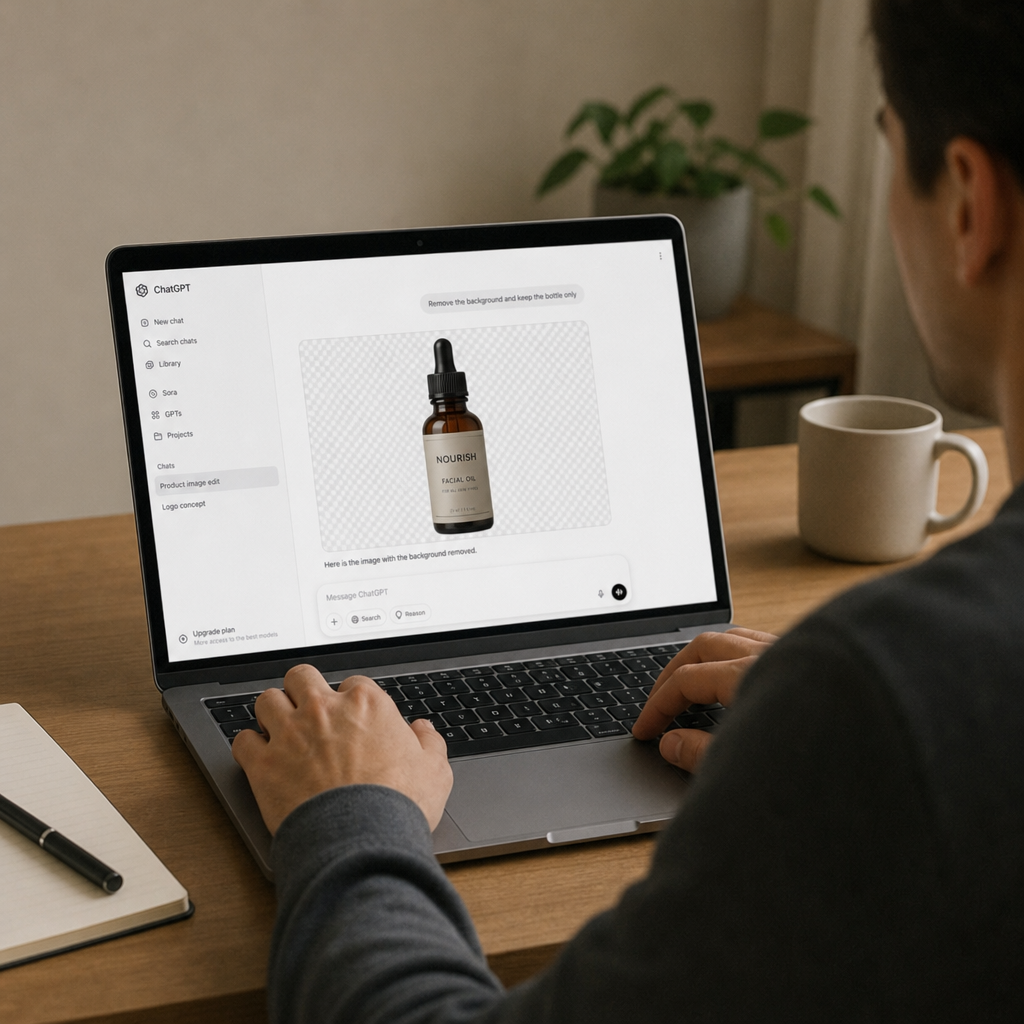
Instead of moving between a prompt generator, a stock image site, and a design app, you can stay in one conversation. You might upload a product photo and ask for a cleaner background, generate a poster concept from a template, or select part of an image and request a specific change. OpenAI’s help documentation also notes that ChatGPT Images can follow instructions to add text, add details, and make backgrounds transparent, which is especially useful for social graphics, presentation visuals, and lightweight brand assets. (help.openai.com)
The biggest shift is conversational editing
Traditional editing tools often require you to know the name of the tool before you can make the change. You need to understand layers, masks, brushes, selections, export settings, and sometimes a long chain of menus. The gpt photo editor experience is different because the instruction starts in plain language: “remove the object on the left,” “make the lighting warmer,” or “turn this sketch into a clean event poster.”
That does not mean skill no longer matters. A vague prompt still produces vague results. But the skill moves from technical button-clicking toward creative direction: knowing what should change, what should stay consistent, and what details matter most.
For example, compare these prompts:
- Too vague: “Make this better.”
- More useful: “Improve the lighting, keep the person’s face natural, remove the clutter from the table, and make the background look like a bright home office.”
- Even stronger: “Create a square social media image from this photo. Keep the subject centered, brighten the background, add space at the top for a short headline, and use a clean editorial style.”
The second and third prompts give the image editing ai a clearer job. They define the goal, protect important elements, and describe the final use.
Key features worth exploring first
The new tools are broad, so it helps to start with the features that deliver value quickly. These are the areas most users will notice first when testing the chatgpt image editor.
Targeted edits with selection tools
OpenAI says users can select part of an image, describe the change they want, and save the result when finished. The help documentation also cautions that highlights may not always be precise and edits can extend beyond the selected area, so it is smart to review the full image after each change. (help.openai.com)
This is useful for edits such as removing a distracting object, changing a small background detail, adjusting a garment color, or replacing an element in a generated image. If the edit affects a specific area, describe that area clearly in the prompt rather than relying on the selection alone.
Templates for faster creative starts
Templates give users a starting point for common visual formats such as posters or logos, then allow customization through prompts. OpenAI notes that ChatGPT may ask follow-up questions to help refine details like visual style, and templates are accessed through the Images area. (help.openai.com)
This matters because many people do not struggle with editing after they have a strong concept; they struggle with the first blank page. Templates reduce that friction. A marketer can draft a campaign poster, a teacher can build a classroom visual, or a founder can explore logo directions without needing to define every visual choice upfront.
Sketch-to-image on mobile
On the ChatGPT mobile app, users can draw a sketch, add written instructions, and generate an image from that reference. OpenAI describes this as a way to turn a rough idea into a finished image by combining drawing with text direction. (help.openai.com)
This is especially helpful when words alone are not enough. If you want a specific layout, object placement, or rough composition, a sketch can communicate the idea faster than a long paragraph. You do not need to be good at drawing; the point is to give the AI a visual map.
Aspect ratio and transparent background options
ChatGPT Images supports generating images in different aspect ratios through an aspect ratio picker or by including the desired ratio in the prompt. OpenAI’s documentation also says the tool can make backgrounds transparent, which can help with logos, stickers, thumbnails, and assets that need to sit on different backgrounds. (help.openai.com)
For practical use, tell ChatGPT where the image will appear. A vertical story graphic, a wide website banner, and a square profile image all need different composition choices. Asking for the right format early can reduce the number of revisions.
How does this change everyday creative workflows?
The biggest practical change is speed from idea to draft. An ai image editor ChatGPT workflow can help people test visual directions, revise concepts, and produce rough creative assets before moving into final design review.
For a small business, that might mean creating seasonal promotional graphics without waiting days for a first mockup. For a content creator, it might mean turning a rough thumbnail idea into several options. For a designer, it can become a brainstorming partner rather than a replacement for professional judgment.
A simple workflow might look like this:
- Define the use case. Say whether the image is for a blog header, ad concept, presentation slide, product mockup, or social post.
- Upload or describe the source. Use an existing image, a generated image, a template, or a mobile sketch.
- Give creative constraints. Mention colors, mood, audience, format, text, background, and anything that must not change.
- Edit in rounds. Ask for one or two meaningful changes at a time instead of stacking too many instructions.
- Review details closely. Check text, hands, faces, logos, proportions, and brand fit before publishing.
- Export and refine if needed. Use ChatGPT for ideation and editing, then finish in a dedicated design tool when precision matters.
This approach keeps the process manageable. It also helps avoid the common mistake of treating AI output as final simply because it looks polished.
Better prompts produce better edits
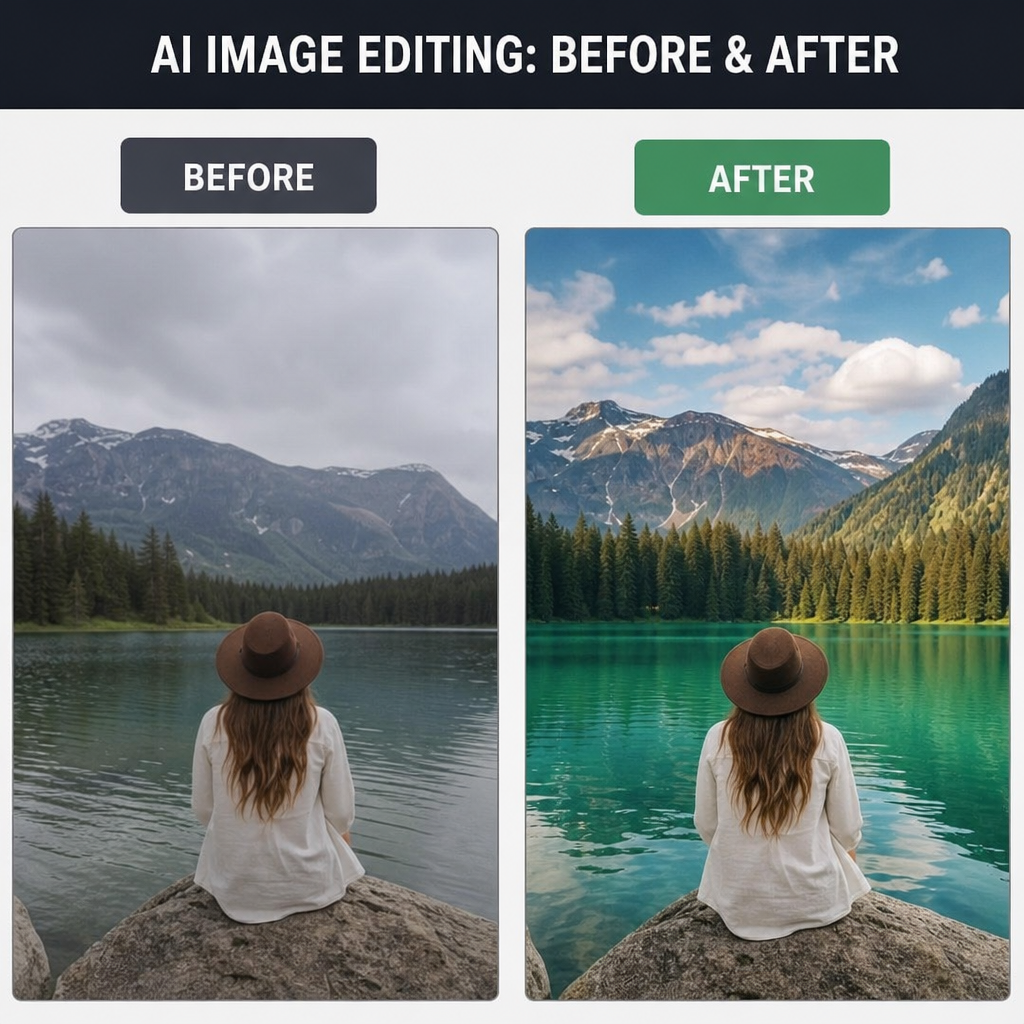
Good image prompts are specific, visual, and purposeful. Instead of describing only what you want changed, describe the final result you want the viewer to see.
Use this checklist before sending a prompt:
- Subject: What should be the main focus?
- Action: What should be added, removed, enhanced, or preserved?
- Style: Should it feel realistic, editorial, playful, minimal, cinematic, or illustrative?
- Format: What aspect ratio or platform is it for?
- Text: Should the image include words, and if so, exactly what should they say?
- Boundaries: What must not change, such as a face, product shape, logo placement, or color palette?
- Quality check: What should ChatGPT pay special attention to after editing?
If you want an ai photo enhancer effect, ask for natural improvements rather than a generic upgrade. For example: “Enhance this portrait with softer lighting, slightly warmer skin tones, reduced background clutter, and a natural look. Do not change the person’s facial features.” That prompt gives the tool direction while protecting the integrity of the image.
Where ChatGPT image editing works best
ChatGPT’s image tools are strongest when the task benefits from interpretation, variation, and quick revision. They are helpful for concepting, ideation, stylistic exploration, layout drafts, background changes, and turning rough inputs into more complete visuals.
Strong use cases include:
- Blog headers and article illustrations
- Social media post concepts
- Presentation visuals
- Event posters and simple promotional graphics
- Mood boards and style exploration
- Product image cleanup concepts
- Educational diagrams or classroom visuals
- Creative transformations of sketches or generated images
There are also cases where you should slow down. If the image requires exact brand compliance, legally sensitive claims, precise product details, or pixel-perfect production work, review it carefully and consider finishing it in professional software. AI can accelerate the draft, but it should not replace approval steps where accuracy matters.
Limitations and responsible use still matter
OpenAI’s help content notes that image inputs are available across ChatGPT platforms and that uploaded PNG, JPEG, JPG, and non-animated GIF files are supported, subject to plan limits and account settings. It also advises users to be mindful when uploading images, including reducing image quantity or size if issues occur. (help.openai.com)
Responsible use is part of a good creative workflow. Avoid uploading sensitive personal information unless you understand how your account handles data. Be careful with images of real people, private locations, copyrighted material, or anything that could mislead viewers if altered. If an edited image changes the meaning of a real event or person’s appearance, consider whether disclosure is appropriate.
It is also worth knowing that OpenAI retired the official DALL·E GPT in ChatGPT on August 30, 2026, and directs users to ChatGPT Images for creating and editing images. That makes ChatGPT Images the main path inside ChatGPT for people who previously thought of these tools as DALL·E-style generation. (help.openai.com)
The takeaway for creators and teams
ChatGPT’s image editing features are not just a novelty; they are becoming a practical creative layer inside everyday work. The combination of natural-language editing, templates, sketches, aspect ratios, transparent backgrounds, and saved image management makes the tool useful for people who need visual content but do not always need a full design production cycle.
The best results come from treating the tool like a creative collaborator. Give clear direction, revise in focused steps, check the output carefully, and use human judgment before anything goes live. Used that way, ChatGPT can help turn rough ideas into usable visuals faster while leaving room for craft, taste, and final review.